Locate vessel in dark periods
To be able to locate a dark vessel is valuable to understand actual vessel behavior. When a vessel turns off their AIS and goes dark, we use the Clearview-feature to locate the vessel using vessel signatures.
In the VAKE-platform, we distinguish between “Gap in AIS” and “Gap in AIS with image coverage”. “Gap in AIS with image coverage” signals that there are images that cover the area, or parts of the area, where the vessel can be (also referred to as a vessels “gap possibility area”). In the track this is marked by a pink dotted line. If you zoom out you can see the satellite passing.
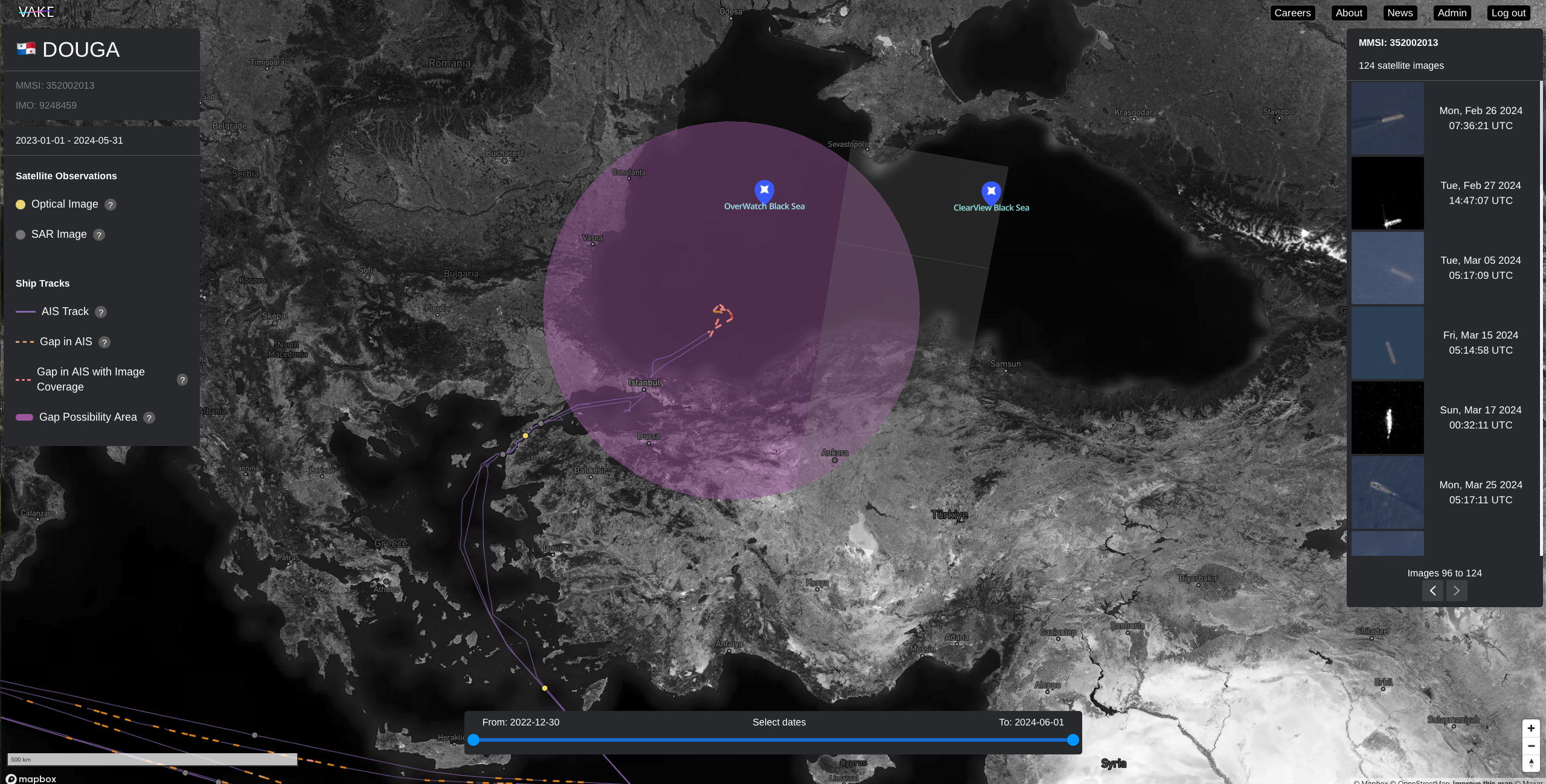
In order to be able to search for vessel signatures in the overlapping satellite image, the images from the passing needs to be processed. Currently you can do this by running an Overwatch for the given area in the given timeframe. Follow this bullet point list to be able to locate a dark vessel in gap with VAKE Clearview:
- Find the gap( “Gap in AIS with Image Coverage”) in your Pathfinder report.
- Click the pink dotted line (but do not click “Locate dark vessel in gap with VAKE Clearview”).
- Zoom out to see the corresponding Satellite pass.
- Create a new Overwatch report for the given area in the given time frame, to trigger image processing.
- Wait for the Overwatch report to be ready.
- Go into your Pathfinder again, and click the pink dotted line.
- Now click Click “Locate dark vessel in gap with VAKE Clearview”.
- In the new window that pops up, select a few relevant images of the vessel.
- Click “Find Matching Images”.
- If there are matching images in the given time-period, you will see them in the right dynamic menu.
Be aware that the model gives you 100 potential matches, no matter if the match is good or not. The best match is always displayed at the top.